![nvolve-logo-140.png]](https://knowledgebase.nvolvegroup.com/hs-fs/hubfs/Logos/nvolve-logo-140.png?height=34&name=nvolve-logo-140.png)
To get started, log in to the Nvolve platform as a manager or administrator with the appropriate permissions.
Then, navigate to the Employees page and select the eye icon beside the employee for whom you want to set a password.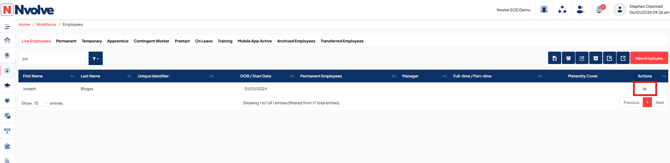
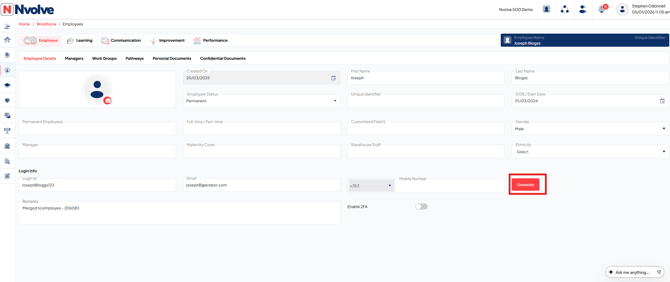
Next, if you want to set a password for the employee, click on the Generate button to automatically create one.
After clicking the Generate button, the new password will be displayed in the password field that appears. Alternatively, you can manually enter a password of your choice in this field. Below the password field is a switch labelled "Force password change after reset", if you switch this off the user will not be prompted to change their password next time they log in. If the switch is toggled on then when the employee next logs in to the platform, they will be prompted to set their own password. Then click Save Updates to apply the changes.
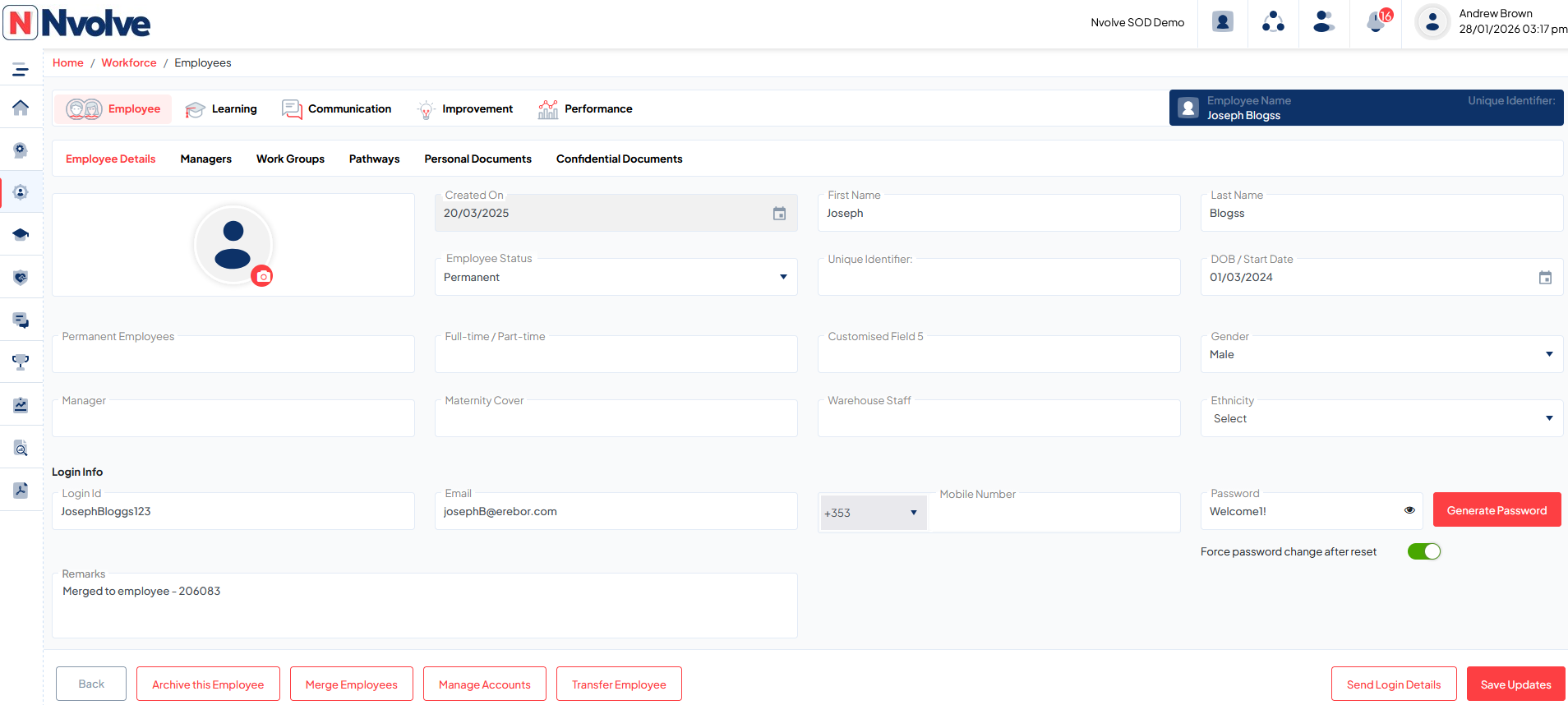
When the employee next logs into the platform on the PC web browser they will get prompted to change their password if this option was selected.